3Data Manipulation 3.1Data Manipulation Libraries
3.1.2 Matplotlib
Draw the four charts you will use most (a loss curve, a scatter plot, a histogram and a bar chart) and make them readable.
Why draw your data?
A table of numbers can hide patterns that a picture makes obvious. One chart may show you that two groups are clearly separated, one value is wildly wrong or a model stopped improving several epochs ago. In an IOAI task, we usually draw charts for ourselves: to understand the data before choosing a model and to see how training is going.
Matplotlib is the standard Python library for charts, and it is available in the contest. You do not need to learn the whole library. We will focus on four charts you will use again and again, plus the few labels and settings that make them readable.
We will use pandas and the Iris dataset from Pandas, so complete that module first if these are not familiar yet.
How to learn it
You do not need to use every resource below. Choose the format that helps you learn, then draw the examples yourself.
- Read: Matplotlib's own Quick start guide explains figures and axes, which is most of what you need. Keep the plot types page nearby as a visual menu of charts.
- Watch: follow Corey Schafer's Matplotlib series, starting with part 1.
- Practise: try the small problems in CodeChef's Matplotlib course as you go.
- Want more depth? Read chapter 4 of the free Python Data Science Handbook.
The basic recipe
Almost every chart follows the same small recipe. We will reuse it throughout this module:
import matplotlib.pyplot as plt

fig, ax = plt.subplots()      # 1. make an empty figure with one chart area
ax.plot([1, 2, 3], [4, 1, 5]) # 2. draw something on it
ax.set_xlabel("x")            # 3. label the axes
ax.set_ylabel("y")
plt.show() # 4. show itfigis the whole figure—the complete picture.axis one chart inside it, with its own axes. We draw onax.- In a notebook, the chart appears directly below the cell.
plt.show()also makes sure you see only the chart, without an extra line of text above it. - The fifth step is the one we are most likely to skip: look at the chart and ask what it tells you. Drawing it is not the goal; learning something from it is.
You will also see code that calls plt.plot(...) directly without creating fig, ax. That is fine for a quick one-off chart. We will use the fig, ax style because the same pattern keeps working when we later place two charts side by side. You only need to become comfortable with this one style for now.
Common charts
Line chart
A line chart shows how something changes from one step to the next. In machine learning, you will often use one for a loss curve: how wrong the model is after each round of training, called an epoch, on both training data and held-out validation data. The numbers below are made up so we can practise reading a common pattern.
import matplotlib.pyplot as plt

epochs = [1, 2, 3, 4, 5, 6, 7, 8, 9, 10]
train_loss = [1.00, 0.72, 0.55, 0.45, 0.38, 0.33, 0.29, 0.26, 0.24, 0.22]
val_loss = [1.05, 0.80, 0.64, 0.56, 0.52, 0.50, 0.50, 0.51, 0.53, 0.56]

fig, ax = plt.subplots()
ax.plot(epochs, train_loss, label="training")
ax.plot(epochs, val_loss, label="validation")
ax.set_xlabel("Epoch")
ax.set_ylabel("Loss")
ax.set_title("Loss during training")
ax.legend()
plt.show()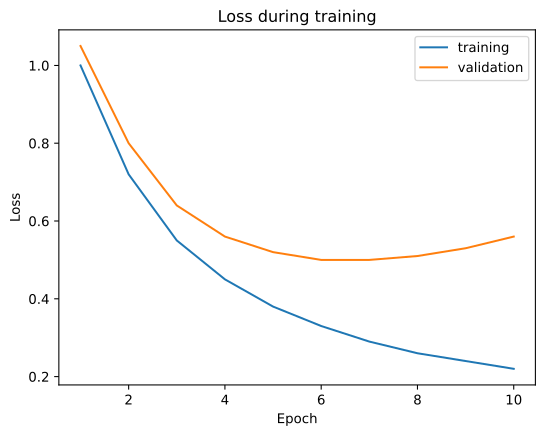
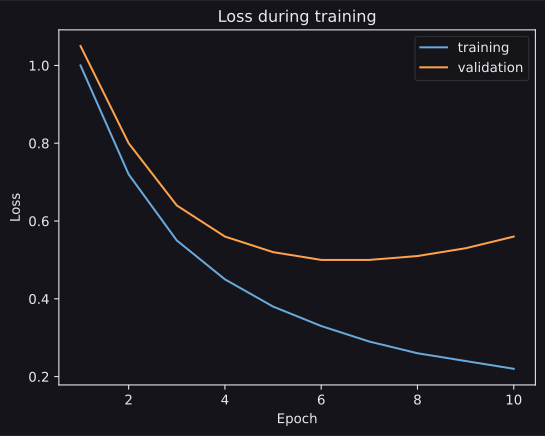
label= gives each line a name, and ax.legend() displays those names in a box. Now let us read the chart. The model keeps improving on its training data, but after about epoch 6 it gets worse on new data. It has started to memorise the training set. This is called overfitting, and Underfitting and Overfitting explains it properly. For now, notice that the chart helps us decide when to stop training.
Scatter plot
A scatter plot draws one dot for each row. One column decides the horizontal position and another decides the vertical position. If we colour the dots by class, we can see whether those classes are easy to separate:
from sklearn.datasets import load_iris

iris = load_iris(as_frame=True).frame
species = ["setosa", "versicolor", "virginica"]

fig, ax = plt.subplots()
for number, name in enumerate(species):
    flowers = iris[iris["target"] == number]
    ax.scatter(flowers["petal length (cm)"],
               flowers["petal width (cm)"], label=name)
ax.set_xlabel("Petal length (cm)")
ax.set_ylabel("Petal width (cm)")
ax.legend()
plt.show()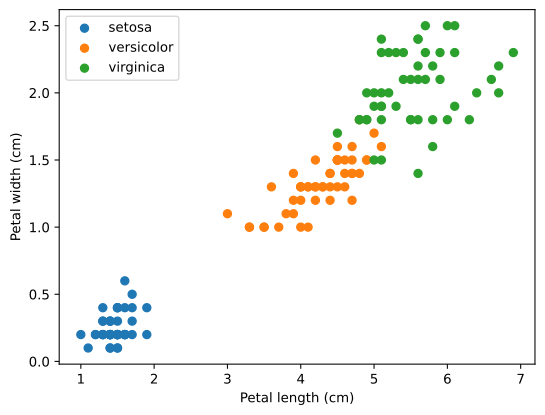
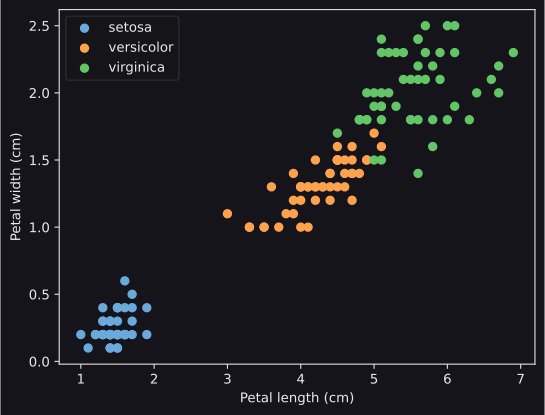
The loop draws each species separately, giving each one its own colour and legend entry. enumerate gives us the number (0, 1, 2) and name together. We can already make a useful prediction from the chart: a sensible model should separate setosa easily, while most mistakes will happen where versicolor and virginica overlap. K-Nearest Neighbors will work directly with patterns like this one.
Histogram
A histogram splits the range of one column into intervals called bins, then counts how many rows fall into each one:
fig, ax = plt.subplots()
ax.hist(iris["petal length (cm)"], bins=20)
ax.set_xlabel("Petal length (cm)")
ax.set_ylabel("Number of flowers")
plt.show()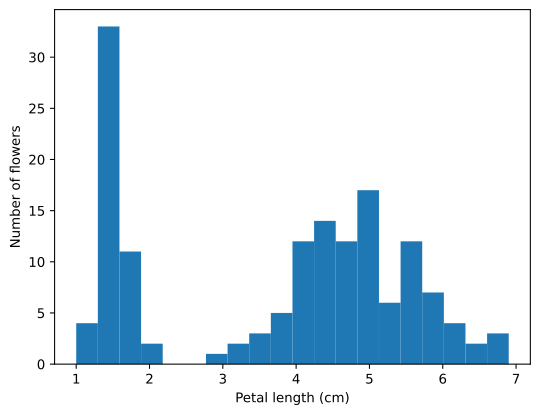
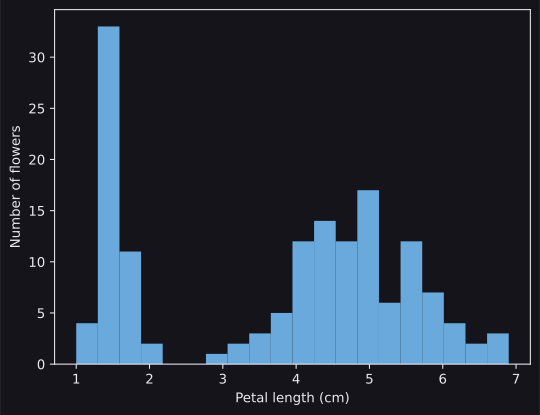
bins controls how many bars we use. You do not need to find a perfect number immediately; try a reasonable value and look at the result. Histograms are a quick way to spot strange values, such as a negative length or an age of 200, before they confuse a model. Data Cleaning shows what to do with them.
Bar chart
A bar chart compares one number across categories. Here, we will compare how many students come from each city:
cities = ["Delhi", "Mumbai", "Pune"]
students = [3, 2, 1]

fig, ax = plt.subplots()
ax.bar(cities, students)
ax.set_ylabel("Students")
plt.show()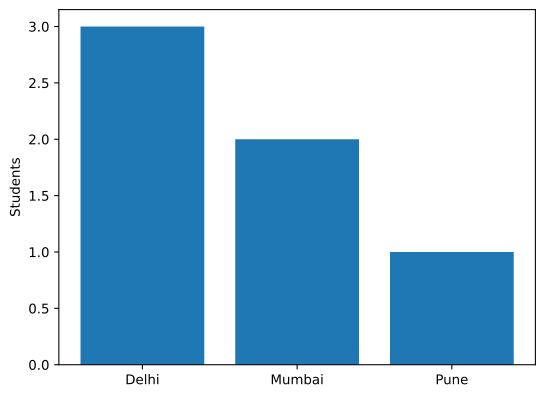
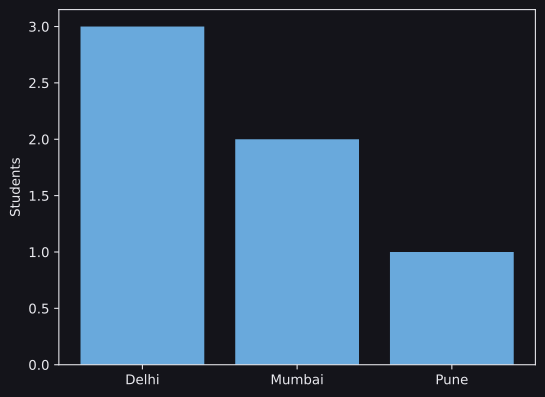
value_counts in the Pandas module, drawn as bars.In a classification task, draw a bar chart of the label counts. You will see at a glance whether one class is much rarer than the others, which affects how we should measure the model.
Two charts side by side
plt.subplots(1, 2) gives us one row containing two chart areas. figsize sets the figure size in inches as (width, height). We draw on the left chart with axes[0] and the right chart with axes[1]:
fig, axes = plt.subplots(1, 2, figsize=(10, 4))
axes[0].hist(iris["sepal length (cm)"], bins=20)
axes[0].set_xlabel("Sepal length (cm)")
axes[1].hist(iris["petal length (cm)"], bins=20)
axes[1].set_xlabel("Petal length (cm)")
plt.show()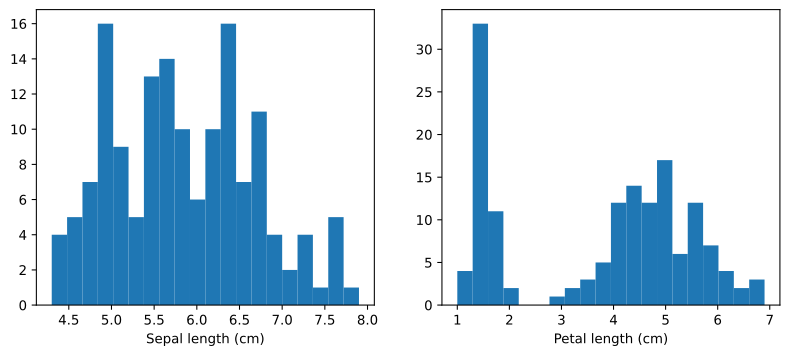
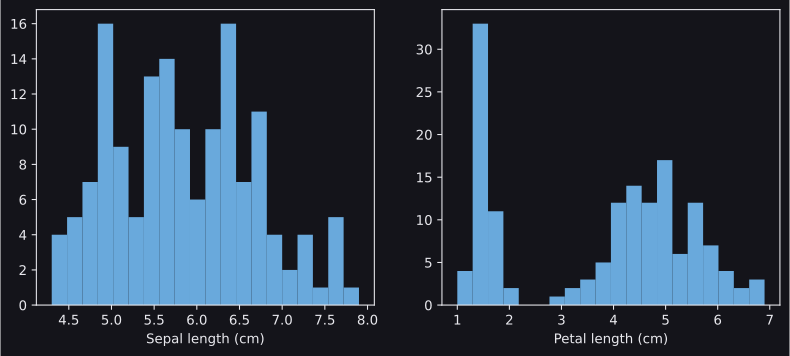
Placing charts next to each other makes comparisons much easier. Here we can immediately see that petal length is the more useful measurement.
A shortcut from pandas
pandas can call Matplotlib for us. iris["petal length (cm)"].plot.hist(bins=20) draws the same histogram as above, while df["city"].value_counts().plot.bar() draws a bar chart straight from the data. This shortcut is useful for a first look. Move to fig, ax when you need more control over the details.
Make it readable
A chart only helps if you can read it. Before moving on, check these few things:
- Axis labels, with units: "Petal length (cm)", not "x".
ax.set_xlabel,ax.set_ylabel. - A legend when there is more than one line or colour:
label=on each, thenax.legend(). - A title if the chart will be looked at later:
ax.set_title. - A sensible size:
plt.subplots(figsize=(8, 4))for wide time series. - Saving:
fig.savefig("loss.png", dpi=150, bbox_inches="tight")writes the chart to a file.
You can also choose colours, markers and line styles, for example ax.plot(x, y, color="red", marker="o", linestyle="--"). Do not spend too long decorating exploratory charts; clarity is enough. The plot types page shows the other options when you need them.
Common mistakes
These mistakes are all easy to make. When a chart looks wrong, check the simple causes below before rewriting the plotting code.
| Mistake | What you see | Fix |
|---|---|---|
| The two lists have different lengths | ValueError: x and y must have same first dimension, but have shapes (10,) and (9,) |
Check len(x) and len(y); a value is missing from one list. |
No label=, but ax.legend() |
An empty legend, or the warning "No artists with labels found to put in legend" | Add label="..." to each plot or scatter. |
| No axis labels | No error, just a chart nobody understands a week later | Always label the axes. |
| Several charts come out on top of each other | Lines from different charts end up in one picture | Start each new chart with fig, ax = plt.subplots(). |
Check yourself
Try each exercise before opening its answer. If you are unsure which chart to choose, first ask what relationship or comparison you want the picture to show.
More practice
CodeChef's Matplotlib course has small problems after each lesson; it is in the practice table below. Then open any dataset you have, such as one from a past IOAI task, and draw one of each of the four charts. For every chart, ask yourself: what can I see here that the table did not show me?
What comes next
If you can draw these four charts, label them and explain what each one shows, you know enough Matplotlib to continue. We can look up extra chart types and styling options when a later task needs them.
- Data Cleaning: charts and
describe()will show you problems in the data; this module shows how to fix them.
Resources
| Source | Title | Why read it |
|---|---|---|
| Matplotlib | Quick start guide | The official introduction: figures, axes and the basic plotting calls. |
| Matplotlib | Plot types | A picture of every basic chart with its code. Handy when you know what you want but not what it is called. |
| Jake VanderPlas | Python Data Science Handbook, chapter 4 | A free book chapter on Matplotlib, with line plots, scatter plots and histograms. |
| Corey Schafer | Matplotlib Tutorial (Part 1) | The first video of a well-known series. |
| Kaggle Learn | Data Visualization | Short lessons with exercises using seaborn, a library built on Matplotlib. |
| seaborn | User guide and tutorial | For when you want nicer statistical charts in fewer lines. |
Practice problems
| Solved | Source | Problem | Difficulty | Tags |
|---|---|---|---|---|
| CodeChef | Learn Matplotlib: practice problems | Easy | plots |
Finished this module? Mark it done.
Comments
Stuck on something, spotted a mistake, or found a resource that helped you? Tell us below.
Loading comments