6Computer Vision 6.1Image Modality Basics
6.1.1 Basic Image Terminology
What an image is to a computer: a grid of pixels, one or more channels, whole numbers from 0 to 255, and the shapes NumPy and PyTorch give it.
Why learn image terminology?
In A Simple MLP in PyTorch, we trained a network on handwritten digits. Each digit was an image of 8 by 8 pixels, but we never treated it as one: scikit-learn had already flattened it into a row of 64 numbers, and the network read it like any other table. That worked for tiny, clean images. It stops working for real photographs, which have hundreds of thousands of pixels and colour.
This part of the guide is about images read as images. Before any model, you need the words and the shapes: what a pixel is, what a channel is, why the numbers go from 0 to 255, and why the same photo has shape (430, 500, 3) in NumPy but (3, 430, 500) in PyTorch. Images are one of the main kinds of data in machine learning, and most bugs in image code are not in the model at all. They are a width swapped with a height, channels in the wrong place, or pixels left as whole numbers from 0 to 255. This page gives you the vocabulary to avoid them.
What you need to know
By the end of this module, you should be comfortable with these ideas:
| Idea | In one line |
|---|---|
| Pixel | One cell of the grid that makes up an image. |
| Resolution | The size of the grid, written width × height, such as 500 × 430. |
| Channel | One number per pixel for one property: brightness for grayscale, or red, green and blue for colour. |
| Grayscale, RGB, RGBA | One channel; three channels; three channels plus transparency (alpha). |
uint8 |
Whole numbers from 0 to 255, the usual type of a pixel value in a file. |
(H, W, C) |
The shape NumPy and Pillow use: rows, then columns, then channels. |
(C, H, W) and (N, C, H, W) |
The shapes PyTorch uses: channels first, and a batch of images in front. |
| Scaling to | Divide by 255 and convert to floats before a network sees the pixels. |
| JPEG and PNG | JPEG files are small but change the pixels slightly (lossy); PNG files keep them exactly (lossless). |
Learn it properly
The ideas here are few, but they come back in every image task. Read one course section on them, then use this page to see each one in code on a real photograph.
Pick one main course
This topic is short, so one lesson is enough.
Our pick: Data Carpentry's Image Basics
Read Image Basics, the first real episode of Data Carpentry's free lesson Image Processing with Python. It explains pixels with a zoomed-in photo, then the coordinate system (row first, with the origin at the top left), the RGB colour model, and the common file formats, including the difference between lossy and lossless compression. Do the short exercises as you go.
The lesson loads images with a library called imageio, which is not on the list of libraries for the 2026 contest machines. Read past that detail: the arrays it produces are exactly the NumPy arrays you get from Pillow on this page.
If you prefer something else
- A short reference: scikit-image's A crash course on NumPy for images covers the shapes, indexing by row and column, and colour channels in a few screens.
- Pillow's own words: the Concepts page of the Pillow handbook defines bands (Pillow's name for channels), modes such as
L,RGBandRGBA, size and coordinates. Useful to keep open while you read Reading and Manipulating Images with Pillow. - From another angle: the background section of CS50x's Filter problem set explains 24-bit colour, with 8 bits each for red, green and blue. The problem itself is written in C, so read it for the explanation.
A quick tour
The rest of this page follows an image from pixels you can see to the tensor a model reads. We will start with the familiar digits, then use one colour photo to see how position, colour and pixel values fit together. Go through your chosen course first, then run each cell in a notebook as you read.
An image is a grid of numbers
Let us start with the digits from A Simple MLP in PyTorch. Besides the flattened rows in digits.data, scikit-learn also keeps each digit as a grid, in digits.images:
from sklearn.datasets import load_digits

digits = load_digits()
first_digit = digits.images[0]
print(first_digit.shape)
print(first_digit.astype(int))(8, 8)
[[ 0 0 5 13 9 1 0 0]
[ 0 0 13 15 10 15 5 0]
[ 0 3 15 2 0 11 8 0]
[ 0 4 12 0 0 8 8 0]
[ 0 5 8 0 0 9 8 0]
[ 0 4 11 0 1 12 7 0]
[ 0 2 14 5 10 12 0 0]
[ 0 0 6 13 10 0 0 0]]Look at where the large numbers are: they trace the outline of a 0. Each number is one pixel (short for "picture element"), one cell of the grid. Here a pixel holds how dark the ink is, from 0 (blank) to 16 (fully dark). An image, to a computer, is nothing more than this: a grid of numbers, one per pixel.
The 64 numbers that the network read in that module are the same grid, read row by row and laid end to end:
import numpy as np

flattened = first_digit.flatten()      # row 0, then row 1, ...
np.array_equal(flattened, digits.data[0])TrueFlattening throws away nothing, but it hides which pixels are next to which. Pixel 7 (the end of the first row) and pixel 8 (the start of the second) sit side by side in the row of 64, although they are at opposite edges of the image. Pixel 0 and pixel 8, which really are neighbours, are 8 places apart. The models in Convolutional Layers keep the grid, so they can use exactly this information. Now let us see how the same grid idea works for a photograph.
Pixels and resolution
Real photographs are the same idea with many more pixels. This page uses one photo of a blue-and-yellow macaw, shrunk to 500 pixels wide. You can download macaw.jpg and put it next to your notebook. We open it with Pillow, the image library on the contest machines, and turn it into a NumPy array:
from PIL import Image

photo = Image.open("macaw.jpg")
pixels = np.asarray(photo)
print(photo.size)      # Pillow: (width, height)
print(pixels.shape)    # NumPy: (height, width, channels)
print(pixels.dtype)(500, 430)
(430, 500, 3)
uint8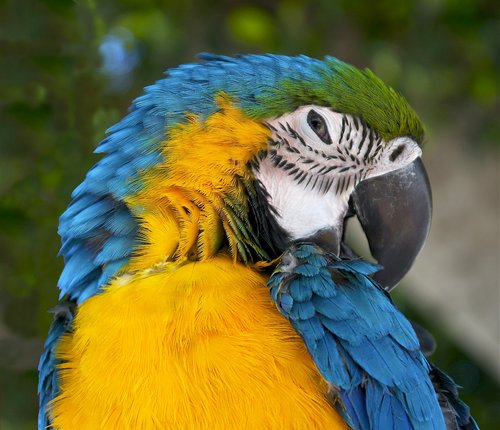

The resolution of an image is the size of its grid. People and Pillow write it as width × height, so this photo is 500 × 430: 500 pixels across and 430 down. NumPy writes the same thing the other way round, because an array is indexed by row first: 430 rows, each 500 pixels long. The third number, 3, tells us that each pixel holds three colour values. We will look at those shortly. The uint8 on the last line names the type of those values; we will come back to that too.
This difference in order is the most common source of bugs in image code. Keep it in mind every time you read a size:
| Where | What it says | Order |
|---|---|---|
photo.size (Pillow) |
(500, 430) |
width, height |
pixels.shape (NumPy) |
(430, 500, 3) |
height, width, channels |
The photo has pixels, and numbers in total. Compare that with the 64 numbers of a digit.
Rows, columns and coordinates
To read one pixel, index the array by row and then column, pixels[row, column]. Row 0 is the top of the image and column 0 is the left edge, so the origin is the top-left corner, and rows count downwards, unlike the axis of a graph. In Pillow, and in most image tools, a position is written (x, y): the column first, then the row. So the pixel that Pillow calls (x, y) is pixels[y, x] in NumPy.
print(pixels[0, 0])        # top-left corner
print(pixels[300, 150])    # row 300, column 150: the yellow chest
print(photo.getpixel((150, 300))) # the same pixel, as (x, y)[37 50 0]
[245 185 3]
(245, 185, 3)We can now find a pixel's position. What does that pixel actually hold? It is easiest to see in a grayscale image, where there is just one value per position.
Grayscale: one number per pixel
The simplest images have one number per pixel: its brightness, from 0 for black to 255 for white. These are grayscale images. Pillow converts a colour photo to grayscale with convert("L") (L stands for luminance, another word for brightness):
gray = np.asarray(photo.convert("L"))
print(gray.shape)
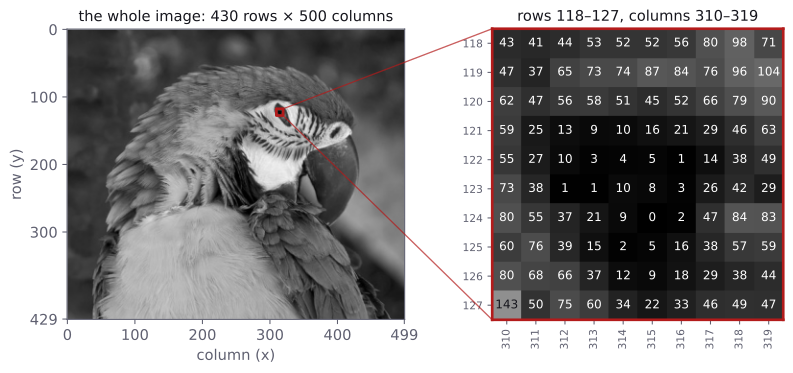
print(gray[121:126, 312:317]) # 5 rows and 5 columns by the eye(430, 500)
[[13 9 10 16 21]
[10 3 4 5 1]
[ 1 1 10 8 3]
[37 21 9 0 2]
[39 15 2 5 16]]A grayscale image has only two dimensions, height and width: there is no channel dimension. The small block printed above is the dark pupil of the macaw's eye, where the values are close to 0. The figure shows a larger block around the same spot, with every value written in:
How does Pillow decide the brightness of a coloured pixel? Its documentation gives the formula: , stored as a whole number. Green counts the most because our eyes are most sensitive to it. For the yellow chest pixel above, :
print(gray[300, 150])182The grayscale photo needed one brightness value at each position. The original macaw photo is in colour, so what does its pixel hold?
Colour: three channels
A colour pixel is made by mixing red, green and blue light, so a colour image stores three numbers per pixel, one for each. This way of storing colour is called RGB. A channel is one complete grid of measurements over the image: the red channel has one red value at every pixel, the green channel has one green value at every pixel, and so on. Think of the three grids stacked together, with one value from each grid at any position. In NumPy the channels are the last dimension, so pixels[:, :, 0] gives us the whole red grid.
Why these three colours? Our eyes have three types of colour-sensitive cells that respond to different, overlapping ranges of light. Mixing red, green and blue light lets a screen produce many colours we can see, so RGB is a natural choice for ordinary photographs and displays. The three numbers are a way to represent colour for us; they are not a limit on how many measurements an image can hold. The National Eye Institute explains how the three types of cells contribute to colour vision.
The yellow chest pixel was [245 185 3]: a lot of red, a fair amount of green, almost no blue. Red and green light together look yellow, which is why yellow needs no blue at all. Here are a few more pixels from the photo:
print(pixels[350, 370])    # blue wing
print(pixels[190, 290])    # white face
print(pixels[180, 300]) # a grey stripe on the face[ 30 98 163]
[233 229 230]
[78 74 75]The blue wing has mostly blue. White is all three channels high; grey is all three about equal, at a middle value; black would be all three near 0. Splitting the photo into its three channels shows the whole picture at once:
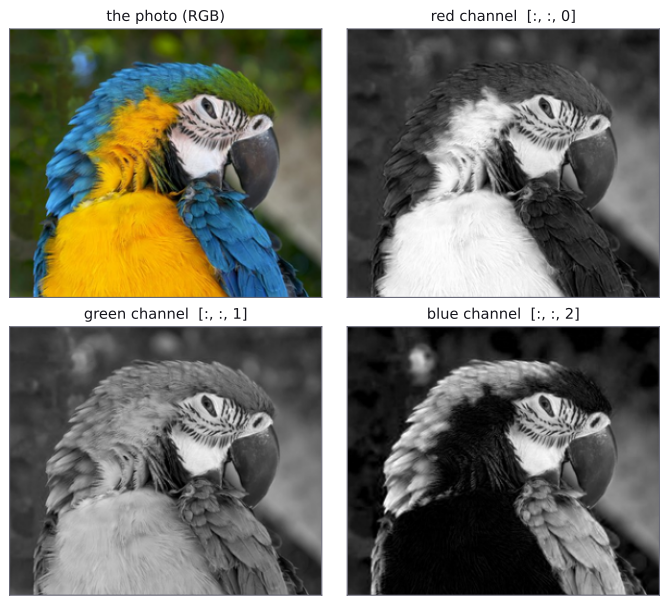
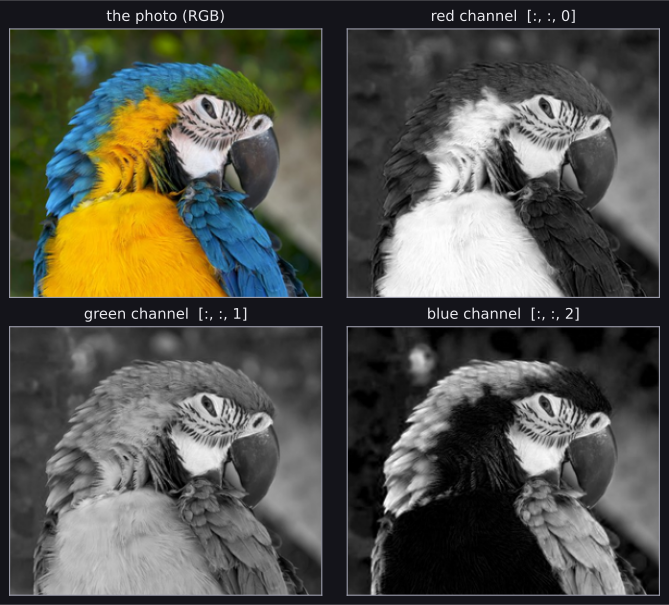
So the shape (430, 500, 3) reads as: 430 rows, 500 columns, and 3 channels per pixel. This order, height, width, channels, is called channels-last or HWC, and it is what Pillow, NumPy, Matplotlib and OpenCV all use.
Other cameras can record more than the three values needed for an RGB photo. Each extra channel is another grid measured at the same positions, perhaps for a different range of light that our eyes cannot see. In IOAI 2025's at-home Task 2, Satellite Weather Forecasting, the satellite images had 16 spectral channels: three for visible light, three for near-infrared and ten for infrared. The model could use information from all 16, even though we could not display those measurements as an ordinary RGB photo. The idea of a channel stays the same; only what each grid measures changes.
OptionalOpenCV stores channels as BGR
OpenCV (cv2, also on the contest machines) reads colour images with the channels in the order blue, green, red. A photo loaded with cv2.imread and shown with Matplotlib therefore has its red and blue swapped: the macaw would come out with an orange back and a blue chest. Convert with cv2.cvtColor(image, cv2.COLOR_BGR2RGB), or reverse the last dimension with image[:, :, ::-1]. This guide uses Pillow, which gives RGB, so you do not need this unless you use OpenCV.
Transparency: RGBA
Some images, especially PNG files such as logos and icons, have a fourth channel called alpha. It says how opaque each pixel is: 0 is fully transparent, 255 fully solid. Pillow calls this mode RGBA. Here is a tiny image of 4 × 2 pixels, all a half-transparent blue:
badge = Image.new("RGBA", (4, 2), (31, 72, 199, 128))
badge_pixels = np.asarray(badge)
print(badge.mode, badge_pixels.shape)
print(badge_pixels[0, 0])RGBA (2, 4, 4)
[ 31 72 199 128]Four channels instead of three. A model built for RGB photos expects exactly three, so an RGBA file has to be converted first, usually with convert("RGB"), which drops the alpha channel:
badge_rgb = badge.convert("RGB")
print(badge_rgb.mode, np.asarray(badge_rgb).shape)RGB (2, 4, 3)Dropping alpha keeps whatever colour was stored under the transparent pixels, which is often black. Reading and Manipulating Images with Pillow shows how to put a transparent image on a white background instead, and how to convert every image in a dataset to the same mode.
Whether a pixel holds one, three or four values, we also need to know what kind of numbers those values are. That determines both their range and what happens when we calculate with them.
Whole numbers from 0 to 255
Look again at pixels.dtype: it was uint8, an unsigned 8-bit integer. Eight bits can store different values, and "unsigned" means no negative numbers, so a uint8 holds the whole numbers from 0 to 255. That is enough levels for the eye, at one byte per channel per pixel. (The digits we started with were stored differently, as floats from 0 to 16, because they were made by counting dark pixels in a larger scan.)
The small range has a trap. Arithmetic on uint8 arrays stays uint8, and a result that does not fit wraps around instead of failing:
bright = np.array([250], dtype=np.uint8)
dark = np.array([3], dtype=np.uint8)
print(bright + 10)    # 260 does not fit: it wraps around to 4
print(dark - 5) # -2 does not fit either: 254[4]
[254]There is no error and no warning: a bright pixel has silently become almost black. Before doing any arithmetic on pixels, such as brightening an image or averaging two, convert them to floats.
That conversion also gives us the kind of values we want to feed into a network. We will convert the photo to floats and put its pixel values on a smaller scale.
Scaling to between 0 and 1
Networks train best on small numbers on a similar scale, for the reasons in Gradient Descent. For images, the usual first step is the one we used for the digits: divide by the largest possible value, here 255, so that every pixel becomes a float between 0 and 1.
scaled = pixels.astype(np.float32) / 255
print(scaled.dtype, scaled.shape)
print(scaled.min(), scaled.max())
print(scaled[300, 150])float32 (430, 500, 3)
0.0 1.0
[0.9607843 0.7254902 0.01176471]The shape is unchanged; only the type and the range are different. float32 is the type PyTorch models use. Many models go one step further and normalise each channel with a mean and a standard deviation; Loading Images into Tensors with Torchvision shows how, and where those numbers come from.
We now know what each value means and how to prepare it. One last detail changes when we hand the image to PyTorch: where the channel dimension goes.
Channels first in PyTorch
PyTorch puts the channels in front: one image is a tensor of shape (C, H, W), channels-first. The reason is practical. The layers in Convolutional Layers work on one channel's whole grid at a time, and with channels first, each channel is one contiguous (H, W) block. You will rarely do the conversion by hand, because torchvision's transforms do it for you, but it is worth seeing once:
import torch

image_tensor = torch.tensor(scaled)       # (H, W, C), float32
print(image_tensor.shape, image_tensor.dtype)
image_tensor = image_tensor.permute(2, 0, 1)    # (C, H, W)
print(image_tensor.shape)torch.Size([430, 500, 3]) torch.float32
torch.Size([3, 430, 500])permute(2, 0, 1) builds a new order of dimensions: the new first dimension is the old dimension 2 (channels), then the old 0 (height), then the old 1 (width). Now image_tensor[0] is the whole red channel.
A tempting shortcut is reshape(3, 430, 500). It gives the right shape and the wrong image. Reshaping keeps the numbers in their original order and only cuts them into new blocks, so the first "channel" would be the first third of the numbers: the R, G and B values of the top rows, all mixed together. Tensors, Matrices, and Related Mathematical Functions explains why. We can check:
red_channel = torch.tensor(scaled[:, :, 0])
reshaped = torch.tensor(scaled).reshape(3, 430, 500)
print(torch.equal(image_tensor[0], red_channel))
print(torch.equal(reshaped[0], red_channel))True
FalseTo move channels, use permute; to change the number of dimensions without moving data, use reshape or unsqueeze.
A batch of images: (N, C, H, W)
Models take a batch of samples at once, with the batch as the first dimension, as in The batch dimension. For images, that makes four dimensions: (N, C, H, W), for images with channels of pixels each. Stacking the photo with its mirror image gives a batch of two:
mirrored = image_tensor.flip(2)         # flip the width dimension
batch = torch.stack([image_tensor, mirrored])
batch.shapetorch.Size([2, 3, 430, 500])Grayscale images get a channel dimension of size 1, even though it holds only one number per pixel, so that every image batch has the same four dimensions. Here is the whole digits dataset in the shape a convolutional network expects:
all_digits = torch.tensor(digits.images, dtype=torch.float32)
print(all_digits.shape)                  # (N, H, W)
all_digits = all_digits.unsqueeze(1)     # add C = 1 at position 1
print(all_digits.shape) # (N, C, H, W)torch.Size([1797, 8, 8])
torch.Size([1797, 1, 8, 8])Convolutional Neural Networks trains a network on exactly this tensor. When you read image code, it helps to write the shape as a comment after each line, as above.
We have followed the photo into a model-ready batch. Before leaving the image file behind, let us look at why saving the same photo in two formats can give different pixel values when we open it again.
File formats: JPEG and PNG
On disk, images are stored compressed, in a file format. Two cover almost everything you will meet:
- JPEG (
.jpg,.jpeg) is lossy: to make files small, it throws away detail that the eye barely notices, so the pixels you read back are slightly different from the ones that were saved. It is the usual format for photographs. - PNG (
.png) is lossless: the pixels come back exactly. Files are larger for photos, but PNG is the usual format for drawings, screenshots, masks and images with transparency.
Let us save the photo both ways, once as PNG and once as a JPEG at a low quality setting, and compare:
import os

photo.save("macaw.png")
photo.save("macaw_q30.jpg", quality=30)    # quality: 0 to 95
for name in ["macaw.jpg", "macaw.png", "macaw_q30.jpg"]:
    size_kb = os.path.getsize(name) / 1024
print(name, round(size_kb), "KB")macaw.jpg 48 KB
macaw.png 341 KB
macaw_q30.jpg 17 KBfrom_png = np.asarray(Image.open("macaw.png"))
from_jpeg = np.asarray(Image.open("macaw_q30.jpg"))
print(np.array_equal(from_png, pixels))
print(np.array_equal(from_jpeg, pixels))
difference = np.abs(from_jpeg.astype(int) - pixels.astype(int))
print(round(difference.mean(), 2), difference.max())True
False
5.38 109The file macaw.jpg was itself saved as a JPEG, at quality 85, when we shrank the original photo; its pixels are what we compare against. The PNG is seven times larger and gives back every pixel exactly. The low-quality JPEG is small, and its pixels are off by a few levels on average, with some much further off. Notice the astype(int) before subtracting: without it, the uint8 subtraction would wrap around, as we saw above. In memory, both files become the same kind of array, (430, 500, 3) of uint8, which takes bytes however small the file was.
Pillow opens all the common formats, so in a task you simply read what you are given. The difference matters when you save images yourself: save masks and anything else you must read back exactly as PNG, never as JPEG.
Common mistakes
The messages are exactly what NumPy, PyTorch and Matplotlib print. Some use nn.Conv2d, the layer from the next module; for now, read it as "a layer that expects 3 channels".
| Mistake | What you see | Fix |
|---|---|---|
Indexing pixels[x, y] instead of pixels[y, x] |
IndexError: index 450 is out of bounds for axis 0 with size 430 (or, worse, the wrong pixel and no error) |
Index NumPy arrays by row, then column: pixels[y, x]. |
Treating photo.size as (height, width) |
No error, but crops and resizes come out with the sides swapped | Pillow's size is (width, height); NumPy's shape is (height, width, channels). |
Adding or subtracting uint8 pixels |
No error, but values wrap around: 250 + 10 gives 4 | Convert first: pixels.astype(np.float32) or .astype(int). |
| Giving a model channels-last images | RuntimeError: Given groups=1, weight of size [8, 3, 3, 3], expected input[1, 430, 500, 3] to have 3 channels, but got 430 channels instead |
permute(0, 3, 1, 2) a batch, or permute(2, 0, 1) one image, to put channels first. |
Giving a model uint8 pixels |
RuntimeError: Input type (unsigned char) and bias type (float) should be the same |
Convert to float32 and divide by 255. |
| An RGBA image where RGB is expected | RuntimeError: Given groups=1, weight of size [8, 3, 3, 3], expected input[1, 4, 430, 500] to have 3 channels, but got 4 channels instead |
image.convert("RGB") when you open each file. |
| A grayscale image with no channel dimension | RuntimeError: Expected 3D (unbatched) or 4D (batched) input to conv2d, but got input of size: [8, 8] |
Add the channel (and batch) dimension with unsqueeze. |
Showing floats from 0 to 255 with plt.imshow |
Clipping input data to the valid range for imshow with RGB data ([0..1] for floats or [0..255] for integers). Got range [0.0..255.0]. and an almost white picture |
Show uint8 values from 0 to 255, or floats from 0 to 1. |
reshape instead of permute to move channels |
No error, but the image is scrambled | Use permute to reorder dimensions. |
How to practise
There is no image section on the practice sites we use (CodeChef, CS50 and HackerRank), but the array skills behind this page are practised there, and the photo gives you plenty to try:
- On HackerRank's NumPy track, solve Shape and Reshape, Transpose and Flatten and Concatenate. Moving an image between
(H, W, C)and(C, H, W), or stacking images into a batch, uses exactly these operations. - Load the photo and find the brightest and darkest pixels of each channel with
argmaxandargmin. Convert each flat index back to a (row, column) pair withnp.unravel_index, and check in the picture that the places make sense. - Make the photo grayscale yourself with the formula on the float array, and compare your result with
convert("L"). How many pixels differ, and by how much?
Check yourself
What comes next
- Convolutional Layers: layers that read an image as a grid, a small window at a time.
- Reading and Manipulating Images with Pillow: opening, converting, resizing and cropping image files in code.
- Loading Images into Tensors with Torchvision: from files on disk to batches of shape
(N, C, H, W).
Resources
| Source | Title | Why read it |
|---|---|---|
| Data Carpentry | Image Processing with Python: Image Basics | Our recommended starting point: pixels, coordinates, RGB colour and file formats, with exercises. |
| scikit-image | A crash course on NumPy for images | Images as NumPy arrays: shapes, indexing by row and column, and colour channels. |
| Pillow | Concepts | Pillow's own definitions of bands (channels), modes such as L, RGB and RGBA, size and coordinates. |
| CS50x | Problem Set 4: Filter | Images as grids of red, green and blue values, and filters that change them. Written in C. |
| Wikimedia Commons | Ara ararauna portrait Rhodes.jpg | The photograph used on this page, by Jebulon, released under CC0 (public domain dedication). |
Finished this module? Mark it done.
Comments
Stuck on something, spotted a mistake, or found a resource that helped you? Tell us below.
Loading comments