6Computer Vision 6.3Raw Image Processing
6.3.1 Reading and Manipulating Images with Pillow
Open, convert, resize, crop, rotate and save image files with Pillow, and turn a folder of images into one NumPy array.
Why learn Pillow?
In Pooling, we finished the two layers that image networks are built from. Before any network can use them, though, the images have to get from files on disk into arrays of the right shape. In a contest image task, the data typically arrives as a folder of image files, often of different sizes, sometimes grayscale and sometimes with transparency. Your code has to read all of them and make them consistent.
Pillow is Python's standard library for this. It is imported as PIL (the name of the older library it replaced) and it is on the list of libraries for the 2026 contest machines. This page covers the operations you will actually use: opening and inspecting a file, converting between modes, resizing, cropping, rotating, saving, and moving between Pillow images and NumPy arrays. The terms (pixels, channels, modes, width × height) come from Basic Image Terminology.
What you need to know
By the end of this module, you should be comfortable with these ideas:
| Idea | In one line |
|---|---|
Image.open |
Opens an image file; .size is (width, height) and .mode is, for example, "RGB". |
convert |
Changes the mode: "L" for grayscale, "RGB" for colour. Convert every image on opening. |
| Transparent images | Paste an RGBA image onto a white background instead of just dropping the alpha channel. |
resize and thumbnail |
resize gives exactly the size you ask for; thumbnail shrinks in place and keeps the shape. |
crop |
Cuts out a box given as (left, upper, right, lower). |
| Rotating and flipping | rotate, transpose and the ImageOps helpers. |
save |
Writes a file; the format comes from the file name. |
| NumPy and back | np.asarray(image) gives (H, W, C); Image.fromarray(array) goes back. |
| A folder of images | Open, convert and resize each file the same way, then stack them into one array. |
Learn it properly
Pillow is a practical tool, and the best way to learn it is to use it. Read the tutorial below once, then run every cell on this page and try the operations on your own photos.
Pick one main course
Our pick: Pillow's own tutorial
Read the first sections of the official Pillow tutorial: Using the Image class, Reading and writing images, Cutting, pasting, and merging images, Geometrical transforms, and Color transforms. They are short and show each method with a few lines of code. You can skip the sections on image sequences, PostScript printing and controlling the decoder.
If you prefer something else
- The definitions: Pillow's Concepts page explains modes, bands, size and coordinates precisely. Read it if a mode such as
PorI;16ever surprises you. - The helpers: the ImageOps reference lists ready-made operations, including
fit,padandmirror, which save you from working out boxes and sizes by hand.
A quick tour
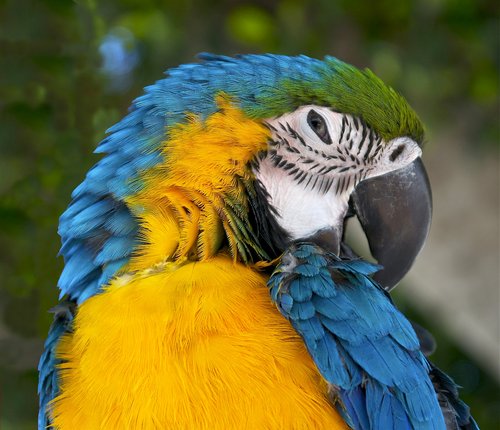
The rest of this page goes through the operations one at a time on the macaw photo from Basic Image Terminology (download macaw.jpg), and ends by loading a whole folder of images. Go through your chosen course first, then run each cell in a notebook as you read.
Opening an image
Image.open reads a file and returns a Pillow Image. Three attributes tell you what you have:
from PIL import Image

photo = Image.open("macaw.jpg")
print(photo.format)    # the file format
print(photo.size)      # (width, height)
print(photo.mode) # what each pixel holdsJPEG
(500, 430)
RGBRemember the order: size is (width, height), the opposite of a NumPy shape. It is often clearer to unpack it into two names at once:
width, height = photo.size
print(width, height)500 430To look at an image in a notebook, make it the last line of a cell (just photo), or call display(photo) anywhere in a cell; Jupyter draws it below the cell. plt.imshow(photo) from Matplotlib works too and adds axes with pixel coordinates, which helps when you work out a crop.
Converting between modes
The mode says what each pixel holds. The ones you will meet most are "RGB" (three channels), "L" (one channel, grayscale), "RGBA" (RGB plus transparency) and "P" (palette: each pixel is an index into a small table of colours, common in GIF and some PNG files). convert changes the mode:
import numpy as np

gray = photo.convert("L")
print(gray.mode, gray.size)
print(np.asarray(gray).shape)
back_to_rgb = gray.convert("RGB")       # three equal channels
print(back_to_rgb.mode, np.asarray(back_to_rgb).shape)L (500, 430)
(430, 500)
RGB (430, 500, 3)Converting grayscale to RGB copies the one channel three times. The image still looks gray, but now it has the three channels a colour model expects.
In a real dataset, files can come in several modes, and a model needs them all the same. The habit that prevents most problems is to convert every image as you open it, to "RGB" for a colour model or "L" for a grayscale one, even if you believe the files are already in that mode.
Transparent images
An RGBA image needs care. Let us make one: a blue circle on a transparent background, drawn with Pillow's ImageDraw module and saved as a PNG.
from PIL import ImageDraw

badge = Image.new("RGBA", (60, 60), (0, 0, 0, 0))   # fully transparent
pen = ImageDraw.Draw(badge)
pen.ellipse((10, 10, 50, 50), fill=(31, 72, 199, 255))
badge.save("badge.png")

badge = Image.open("badge.png")
print(badge.mode)
print(badge.getpixel((0, 0)))     # a corner: transparent
print(badge.getpixel((30, 30))) # the middle: solid blueRGBA
(0, 0, 0, 0)
(31, 72, 199, 255)The transparent corner is stored as (0, 0, 0, 0): black, with an alpha of 0. Converting straight to RGB drops the alpha and keeps that hidden black, so the circle ends up on a black square. Usually you want what a viewer would see, which is the circle on a white page. For that, paste the image onto a white background, using its own alpha channel as the mask that says how much of each pixel to copy:
dropped = badge.convert("RGB")
print(dropped.getpixel((0, 0)))

on_white = Image.new("RGB", badge.size, "white")
on_white.paste(badge, mask=badge)       # the alpha channel is the mask
print(on_white.getpixel((0, 0)), on_white.getpixel((30, 30)))(0, 0, 0)
(255, 255, 255) (31, 72, 199)Whether black or white is right depends on the task, but choose on purpose, and treat all images in a dataset the same way.
Resizing
Models need all images at one size, so resizing is the most common operation of all. resize takes the new size as a (width, height) pair and returns a new image:
half = photo.resize((250, 215))
square = photo.resize((224, 224))
print(half.size, square.size)(250, 215) (224, 224)resize gives you exactly what you ask for, even if that changes the shape: the photo is wider than it is tall, so the 224 × 224 version is squashed sideways. thumbnail is the other option. It shrinks the image in place (it changes the image and returns None) so that it fits inside the size you give, keeping its shape, and it never makes an image larger:
small = photo.copy()           # thumbnail changes the image itself
small.thumbnail((224, 224))
small.size(224, 193)The longer side became 224 and the other side shrank in proportion, to 193. To get an exact square without squashing, combine the two ideas: resize so that the shorter side has the size you want, then crop the middle. ImageOps.fit(photo, (224, 224)) does exactly that in one call, and torchvision's Resize and CenterCrop, in Loading Images into Tensors with Torchvision, do the same inside a model's data pipeline.
When it makes an image smaller or larger, resize has to invent new pixel values from the old ones. By default it uses the bicubic method, which blends neighbouring pixels smoothly. That is right for photos and wrong for images whose values are labels, such as a mask that marks an object with 255 and the background with 0: blending would create values in between that are neither. For those, ask for the nearest method, which copies the nearest pixel instead:
mask = Image.new("L", (8, 8), 0)
ImageDraw.Draw(mask).rectangle((2, 2, 5, 5), fill=255)

smooth = mask.resize((5, 5))
nearest = mask.resize((5, 5), Image.Resampling.NEAREST)
print(np.unique(np.asarray(smooth)))
print(np.unique(np.asarray(nearest)))[ 0 142 190 203 255]
[ 0 255]The default resize invented values between 0 and 255 along the edge of the square; the nearest method kept only the two that mean something.
Cropping
crop cuts out a rectangle, given as a box of four numbers: (left, upper, right, lower). These are pixel coordinates, first as always in Pillow, and the right and lower edges are not included, just like the end of a Python slice. Here is a 200 × 200 box around the macaw's head:
head = photo.crop((250, 60, 450, 260))
head.size(200, 200)In NumPy, the same crop is a slice, with rows (the range) first:
pixels = np.asarray(photo)
head_by_slicing = pixels[60:260, 250:450]
np.array_equal(np.asarray(head), head_by_slicing)TrueA centre crop of any size works out the box from the image's size. Writing the arithmetic out once makes the order of the four numbers stick:
def center_crop(image, crop_width, crop_height):
    width, height = image.size
    left = (width - crop_width) // 2
    upper = (height - crop_height) // 2
    box = (left, upper, left + crop_width, upper + crop_height)
    return image.crop(box)

center_crop(photo, 300, 300).size(300, 300)Rotating and flipping
rotate turns an image by an angle in degrees, anticlockwise. By default the result keeps the original size, so the corners are cut off and the gaps filled with black; expand=True makes the canvas big enough for the whole rotated image, and fillcolor chooses the colour of the gaps. For flips and quarter turns, which lose nothing, use transpose:
tilted = photo.rotate(30, expand=True, fillcolor="white")
quarter_turn = photo.transpose(Image.Transpose.ROTATE_90)
mirrored = photo.transpose(Image.Transpose.FLIP_LEFT_RIGHT)
upside_down = photo.transpose(Image.Transpose.FLIP_TOP_BOTTOM)
print(tilted.size, quarter_turn.size, mirrored.size)(650, 624) (430, 500) (500, 430)A quarter turn swaps the width and the height. ImageOps.mirror(photo) and ImageOps.flip(photo) are shorter names for the two flips. Here are several of the operations so far:
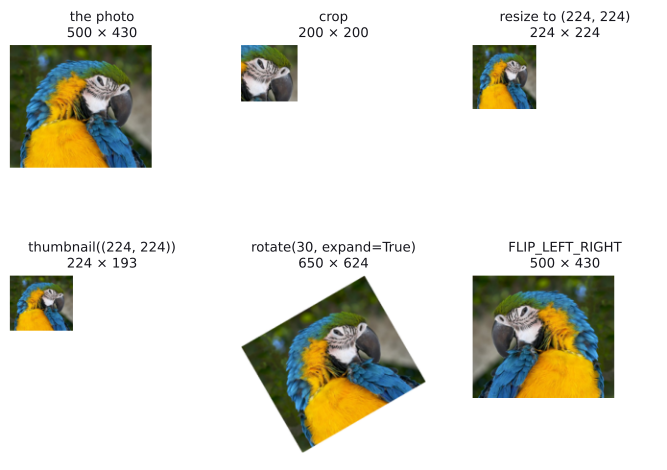
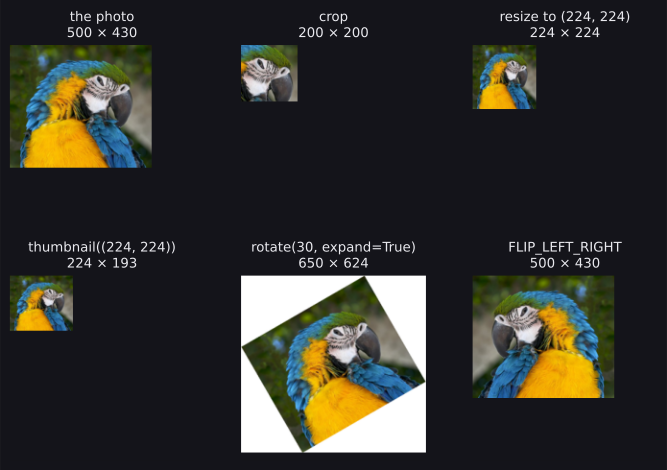
Flips and small rotations are also the simplest kind of data augmentation: making extra, slightly different training images from the ones you have. Loading Images into Tensors with Torchvision does it randomly during training.
Saving
save writes an image to a file, and picks the format from the file name's extension:
import os

head.save("head.png")
head.save("head.jpg", quality=90)
for name in ["head.png", "head.jpg"]:
print(name, Image.open(name).format, os.path.getsize(name))head.png PNG 74967
head.jpg JPEG 15498For JPEG, quality goes from 0 (worst) to 95 (best), and the default is 75. JPEG cannot store transparency, so an RGBA image must be converted to RGB before saving it as JPEG; Common mistakes shows the error. As Basic Image Terminology explains, save anything you need back exactly, such as masks, as PNG.
From Pillow to NumPy and back
np.asarray turns an image into an array of shape (height, width, channels) (or (height, width) for mode L), and Image.fromarray turns an array of uint8 values back into an image. In between, you can use any NumPy operation. Here we darken the photo by multiplying every value by 0.6:
pixels = np.asarray(photo)                       # uint8, (430, 500, 3)
darker = pixels.astype(np.float32) * 0.6         # floats, to be safe
darker = darker.round().astype(np.uint8)         # back to 0..255
darker_photo = Image.fromarray(darker)
print(darker_photo.mode, darker_photo.size)
print(pixels[300, 150], darker[300, 150])RGB (500, 430)
[245 185 3] [147 111 2]Two details matter. First, the array from np.asarray(photo) is read-only, because it shares memory with the image; to change pixels in place, make a copy with np.array(photo). Second, Image.fromarray decides the mode from the array's shape and type, and it only understands colour images as uint8. A float array must be scaled to 0–255 and converted with astype(np.uint8) first, as above.
A folder of images
Now everything comes together. An image task typically gives you a folder of files. To show the pattern, we first make a small folder ourselves: six crops of the photo, saved with different sizes and modes, plus a stray text file of the kind that often sits in real data folders:
os.makedirs("images", exist_ok=True)
boxes = [(0, 0, 200, 200), (250, 60, 450, 260), (100, 200, 400, 430),
         (300, 200, 500, 430), (0, 150, 250, 400), (150, 0, 450, 150)]
for number, box in enumerate(boxes):
    piece = photo.crop(box)
    if number % 3 == 1:
        piece = piece.convert("L")             # some are grayscale
    if number % 3 == 2:
        piece = piece.convert("RGBA")          # some have alpha
    piece.save(f"images/piece_{number}.png")
with open("images/notes.txt", "w") as notes:
    notes.write("not an image")
sorted(os.listdir("images"))['notes.txt', 'piece_0.png', 'piece_1.png', 'piece_2.png', 'piece_3.png', 'piece_4.png', 'piece_5.png']Now we load the folder. For each image file: open it, convert it to RGB, resize it to the same size, and turn it into an array. Then we stack the arrays into one:
from pathlib import Path

def load_image(path, size):
    with Image.open(path) as image:
        image = image.convert("RGB")
        image = image.resize(size)
        return np.asarray(image)

image_paths = sorted(Path("images").glob("*.png"))
arrays = []
for path in image_paths:
    arrays.append(load_image(path, (64, 64)))
all_images = np.stack(arrays)
print(len(image_paths), all_images.shape, all_images.dtype)6 (6, 64, 64, 3) uint8Six images of different sizes and modes became one array of shape (6, 64, 64, 3): images, height, width, channels. A few details:
glob("*.png")picks only PNG files, so the text file is skipped. With mixed formats, filter on the extension, for examplepath.suffix.lower() in {".jpg", ".jpeg", ".png"}.sortedgives a fixed order. Without it, the order of files in a folder depends on the system, and your predictions would not line up with the file names.with Image.open(path) as image:closes the file when the block ends. With thousands of files, open files that are never closed can run into the system's limit.np.stackonly works if every array has the same shape, which is why every image is converted and resized the same way.
For a few hundred small images this is all you need. For larger datasets, you do the same work one image at a time inside a PyTorch Dataset, so the images are loaded batch by batch during training instead of all at once; Loading Images into Tensors with Torchvision shows how.
Common mistakes
The messages are exactly what Pillow and NumPy print.
| Mistake | What you see | Fix |
|---|---|---|
Giving resize a (height, width) pair |
No error, but the image comes out with its sides swapped | Pillow sizes are always (width, height). |
A crop box in the wrong order, e.g. (upper, left, lower, right) |
Often no error and the wrong region; sometimes ValueError: Coordinate 'right' is less than 'left' |
The box is (left, upper, right, lower): , , , . |
small = photo.thumbnail((224, 224)), then small.size |
AttributeError: 'NoneType' object has no attribute 'size' |
thumbnail changes the image in place and returns None; copy the image, call thumbnail on the copy, and use the copy. |
Saving an RGBA image as JPEG |
OSError: cannot write mode RGBA as JPEG |
convert("RGB") first, or save as PNG. |
Image.fromarray on a float array |
TypeError: Cannot handle this data type: (1, 1, 3), <f4 |
Scale to 0–255 and convert with astype(np.uint8). |
Changing the array from np.asarray(image) |
ValueError: assignment destination is read-only |
Make a copy with np.array(image). |
| A non-image file in the folder | PIL.UnidentifiedImageError: cannot identify image file 'notes.txt' |
Filter the file names by extension before opening them. |
| Mixed modes in one dataset | np.stack fails, or a model gets 1 or 4 channels instead of 3 |
convert("RGB") (or "L") every image on opening. |
| Resizing masks or label images with the default method | No error, but new in-between values appear | Use Image.Resampling.NEAREST for them. |
How to practise
There is no Pillow section on CodeChef or HackerRank, but CS50's Introduction to Programming with Python has a problem built on it:
- Solve CS50 P-Shirt from Problem Set 6. It asks you to resize and crop a photo with
ImageOps.fitand overlay a shirt with transparency usingpaste, exactly the operations on this page. The problem is a command-line program, but you can try the image part in a notebook first. - Write a function that pads an image to a square with white borders instead of cropping it, then compare your result with
ImageOps.pad. - Rewrite
center_cropwith NumPy slicing on the array instead ofcrop, and check that both give the same pixels.
Check yourself
What comes next
- Loading Images into Tensors with Torchvision: from image files to batches of tensors, with resizing, normalisation and data augmentation inside a Dataset.
- Convolutional Neural Networks: a network that learns from those batches.
Resources
| Source | Title | Why read it |
|---|---|---|
| Pillow | Tutorial | Our recommended starting point: Pillow's own tutorial on reading, writing, cropping, resizing, rotating and converting images. |
| Pillow | Concepts | Modes, bands, size and the coordinate system, defined precisely. |
| Pillow | ImageOps module | Ready-made operations such as fit, pad, mirror and grayscale. |
| CS50's Introduction to Programming with Python | Problem Set 6: CS50 P-Shirt | A practice problem: resize, crop and overlay images with Pillow. |
| Wikimedia Commons | Ara ararauna portrait Rhodes.jpg | The photograph used on this page, by Jebulon, released under CC0 (public domain dedication). |

Finished this module? Mark it done.
Comments
Stuck on something, spotted a mistake, or found a resource that helped you? Tell us below.
Loading comments